
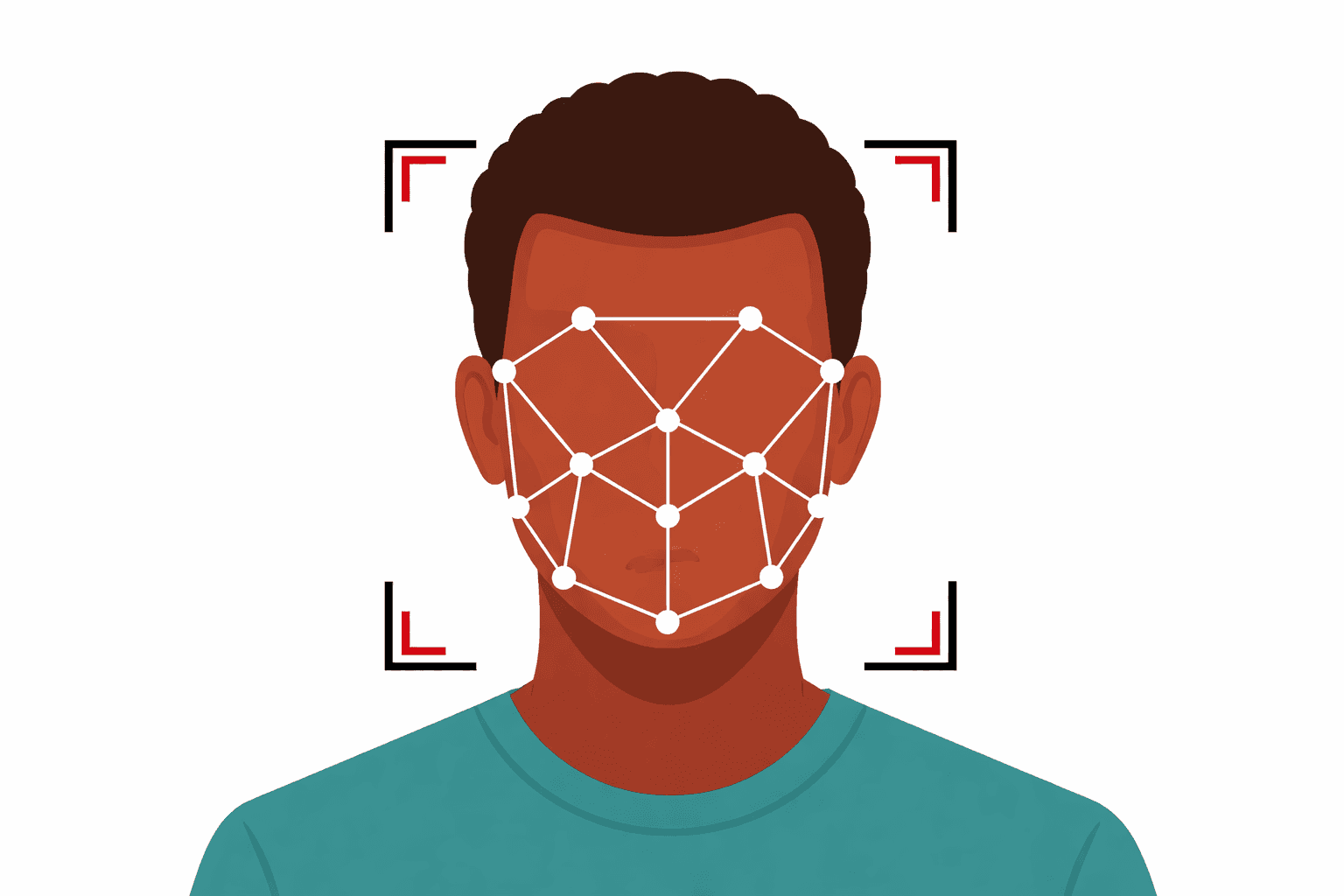
Face detection is one of those computer vision tasks that feels complex on the surface but becomes straightforward with the right API. The APIShard Face Detector lets you upload an image and instantly get the coordinates, dimensions, and confidence scores for every detected face - no ML model training, no GPU required.
In this guide, we'll walk through three practical patterns: basic face detection, filtering results by confidence.
How Face Detection Works
When you send an image to the Face Detector API, it returns:
{
  "count": 2,
  "faces": [
    {
      "x": 120,
      "y": 85,
      "w": 95,
      "h": 110,
      "confidence": 0.98
    },
    {
      "x": 320,
      "y": 90,
      "w": 90,
      "h": 108,
      "confidence": 0.95
    }
  ]
}
Each face includes:
- x, y: Top-left corner position (pixels)
- w, h: Width and height (pixels)
- confidence: Detection confidence score (0.0–1.0)
Pattern 1: Basic Face Detection with cURL
The simplest way to get started is a direct POST request with multipart form data:
curl -X POST "https://api.apishard.com/v1/face-detector" \
  -H "x-api-key: $APISHARD_KEY" \
  -F "[email protected]"
This returns the face count and bounding box data instantly.
Pattern 2: Detecting Faces in TypeScript
For production applications, you'll want to handle errors and process results:
import fs from "fs";
import path from "path";

interface Face {
  x: number;
  y: number;
  w: number;
  h: number;
  confidence: number;
}

interface DetectionResult {
  count: number;
  faces: Face[];
}

async function detectFaces(imagePath: string): Promise<DetectionResult> {
  const imageBuffer = fs.readFileSync(imagePath);
  const formData = new FormData();
  const blob = new Blob([imageBuffer], { type: "image/jpeg" });
  formData.append("image", blob, path.basename(imagePath));

  const response = await fetch("https://api.apishard.com/v1/face-detector", {
    method: "POST",
    headers: {
      "x-api-key": process.env.APISHARD_KEY!,
    },
    body: formData,
  });

  if (!response.ok) {
    const error = await response.json();
    throw new Error(`Face detection failed: ${error.message}`);
  }

  return response.json();
}

// Usage
const result = await detectFaces("./photo.jpg");
console.log(`Found ${result.count} face(s)`);
result.faces.forEach((face, i) => {
  console.log(`Face ${i + 1}: confidence ${(face.confidence * 100).toFixed(1)}%`);
});
Pattern 3: Filter by Confidence Threshold
Not all detections are equal. In real applications, you'll often want to discard low-confidence results:
async function detectHighConfidenceFaces(
  imagePath: string,
  threshold: number = 0.85
): Promise<Face[]> {
  const result = await detectFaces(imagePath);
  return result.faces.filter((face) => face.confidence >= threshold);
}

// Usage: Only keep faces detected with 90% confidence or higher
const highConfidenceFaces = await detectHighConfidenceFaces("./photo.jpg", 0.9);
console.log(`High-confidence detections: ${highConfidenceFaces.length}`);
This pattern is essential for security-sensitive applications like facial recognition systems, where false positives can cause problems.
Supported Image Formats
The API accepts:
- JPG / JPEG: Most common, good compression
- PNG: Lossless, supports transparency
- WebP: Modern format, excellent compression
Keep image sizes reasonable - while there's no strict limit, very large images may take longer to process.
Real-World Use Cases
Photo Albums & Galleries: Auto-tag faces and suggest organizing photos by person.
Content Moderation: Flag images containing faces for human review in user-generated content workflows.
Attendance Systems: Detect faces in captured photos to verify person-in-the-loop for time-tracking or security.
Accessibility: Generate face descriptions for visually impaired users ("Photo contains 2 faces").
Pricing & Credits
Each face detection call costs 10 credits. With a typical plan, you get a generous monthly allowance - check your dashboard for details. Bulk operations benefit from batching: use Promise.all() to parallelize uploads rather than processing images sequentially.
Error Handling
Always expect and handle these responses:
| Status | Cause | Action |
|---|---|---|
200 | Success | Parse count and faces array |
400 | Invalid image format or corrupted file | Verify the image is a valid JPG/PNG/WebP |
401 | Missing or invalid API key | Check your x-api-key header |
403 | Insufficient credits | Upgrade your plan or wait for credit refresh |
429 | Rate limit exceeded | Implement exponential backoff; see docs |
Putting It Together
Here's a complete example that detects faces, filters by confidence, and logs results:
import fs from "fs";

async function processImage(imagePath: string): Promise<void> {
  console.log(`Processing: ${imagePath}`);

  const result = await detectFaces(imagePath);
  console.log(`Total detections: ${result.count}`);

  const highConfidence = result.faces.filter((f) => f.confidence >= 0.9);
  console.log(`High-confidence (≥90%): ${highConfidence.length}`);

  highConfidence.forEach((face, i) => {
    const area = face.w * face.h;
    console.log(
      `  Face ${i + 1}: ${face.w}×${face.h}px, area=${area}, conf=${(
        face.confidence * 100
      ).toFixed(1)}%`
    );
  });
}

// Run on all JPGs in a directory
const imageDir = "./photos";
fs.readdirSync(imageDir)
  .filter((f) => f.endsWith(".jpg"))
  .forEach((file) => processImage(`${imageDir}/${file}`));
Next Steps
- Batch Processing: Combine face detection with other APIs (like Image to Text) to build richer insights.
- Real-Time Streams: If you're processing video, send keyframes every N seconds to balance accuracy with cost.
- Storage Integration: Save detection results to a database for historical analysis.
Check the full API docs for more details on response headers (credit usage), rate limits, and advanced options. Happy detecting!